
4 Best Thunderbolt 5 Docks in 2026
We compared Thunderbolt 5 docks by real per-chip Apple Silicon display support and warranty coverage, since generic branding hides real per-model differences.

New to Amazon Prime?
Get fast, free shipping on every pick in this guide, plus Prime Video and exclusive deals.
Try Prime Free


At a Glance
StarTech Thunderbolt 5 Universal Docking Station, Quad Monitor
↓ See why we picked itThunderbolt 5 delivers up to 80Gbps bi-directional bandwidth with a Bandwidth Boost feature that can allocate up to 120Gbps toward demanding displays, doubling Thunderbolt 4's core throughput, but the practical differences between docks come down to display support by exact chip, warranty coverage, and daisy-chain flexibility.
We compared this lineup on per-chip Apple Silicon display documentation, warranty length and coverage amount, and total port count, since one listing specifically backs its dock with 3-year coverage up to $2,500 in protection, a concrete figure worth comparing against competitors' standard warranty terms.
5 Criteria to Look For Before Buying a Thunderbolt 5 Dock
Key buying criteria so you get the right fit the first time.
Thunderbolt 5's Bandwidth Boost Dynamically Reallocates Between Data and Display Needs
The CalDigit TS5 specifically states its 80Gb/s base bandwidth can shift to allocate up to 120Gb/s toward displays through Bandwidth Boost when high-refresh monitors are connected, illustrating that a dock's total bandwidth is a dynamically managed pool rather than two separate fixed allocations for data and video. This matters if you're running demanding, high-refresh displays alongside fast storage transfers simultaneously, where this dynamic reallocation genuinely helps maximize real-world performance, and matters less if your use case involves only modest display or data transfer needs. Understand that Thunderbolt 5's headline bandwidth figures represent a dynamically shared pool, not fixed simultaneous allocations, when evaluating a dock's real-world multitasking performance.
A Warranty's Disclosed Monetary Protection Figure Provides More Concrete Assurance Than a Vague Coverage Claim
The Belkin pick specifically states its 3-year coverage protects up to $2,500 in connected device damage, a concrete monetary figure that quantifies exactly what the warranty protects beyond simply replacing the dock itself if it fails, a meaningfully more specific commitment than competitors' standard hardware-only warranty terms. This matters if you're connecting expensive peripherals (external displays, storage devices) to the dock and want assurance against damage those devices might sustain from a dock malfunction, and matters less if you only connect low-value or already-insured peripherals. Look for a warranty that specifically states a monetary protection figure for connected devices, not just coverage for the dock's own hardware replacement, if protecting your broader peripheral investment matters to you.
Apple Silicon Display Support Genuinely Varies by Exact Chip Tier, Making Granular Documentation Valuable
The StarTech pick specifically documents dual 6K support on Pro/Max models, triple 4K at 120Hz on M5 Pro chips specifically, and quad 4K displays only when daisy-chaining two monitors on M5 Max chips, a level of chip-specific detail that reveals real, meaningful differences in display capability across Apple's current lineup that a generic 'Mac compatible' claim doesn't convey. This matters significantly if you're choosing a dock specifically to maximize your exact Mac chip's display potential, and matters less if any single external display comfortably meets your needs. Look for a dock listing that specifically names your exact Mac chip tier's display limits rather than accepting a generic Mac compatibility claim that doesn't specify which chip generation it actually tested.
A Concrete Real-World Transfer Benchmark Is More Intuitive to Evaluate Than Raw Bandwidth Alone
The Anker Prime pick's specifically stated 150GB file transfer in 25 seconds gives a concrete, relatable performance benchmark that's easier to evaluate practically than comparing abstract Gbps figures across competing docks, which requires more technical interpretation to translate into real-world impact. This matters if you want an intuitive sense of actual performance for large-file workflows like video editing or backup transfers, and matters less if you're comfortable directly comparing technical bandwidth specifications. Look for a dock listing that provides a concrete real-world transfer time example alongside raw bandwidth figures, since this gives a more intuitive sense of actual performance for typical large-file tasks you'll actually perform.
Disclosed Electrical Safety Systems Protect Both the Dock and Every Connected Device From Real Failure Modes
The Belkin pick's specifically named 6-point Smart Safety System covers over-voltage, overload, over-current, over-temperature, short-circuit protection, and fire-resistant materials, a comprehensive and specifically enumerated safety approach that goes beyond a generic 'built-in protection' claim without naming the actual failure modes addressed. This matters if you're connecting valuable or sensitive electronic devices to the dock where electrical faults could cause real damage, and matters less if you're only connecting low-value, easily replaceable peripherals. Check whether a dock specifically names its electrical safety protections and the exact failure modes covered, rather than accepting vague 'safety features included' language without specifics.
4 Best Thunderbolt 5 Docks in 2026
CalDigit TS5 Thunderbolt 5 Dock, 15 Port
About this pick
This dock's 4 Thunderbolt 5 ports (1 host, 3 downstream) each support up to 80Gb/s bandwidth with Bandwidth Boost allocating up to 120Gb/s to connected displays when needed, backed by a 240W power supply that sustains power delivery across all 15 ports simultaneously. Its dual 8K@60Hz display support and UHS-II SD and microSD card readers round out a comprehensive professional workstation solution.
Compared to the Belkin and StarTech picks below, this one's aluminum heat sink chassis is specifically engineered as an external heat sink to dissipate the heat generated by its substantial power delivery, meticulously tested for safety and sustained performance. Its 140W host charging specifically covers power-hungry 16-inch M3/M4/M5 Pro and Max series MacBook Pro models.
Best for buyers who want the most comprehensive port count with sustained full-power delivery across every connected device.
Best for: buyers who want the most comprehensive port count with sustained full-power delivery
Check price on AmazonPros
- +Comprehensive 15-port design covers nearly every peripheral need
- +240W power supply sustains full power across all ports simultaneously
- +140W charging specifically covers demanding 16-inch MacBook Pro Max models
Cons
- −Highest price in this comparison at under $400
- −Full performance requires a genuine Thunderbolt 5 or USB4 v2 host
Belkin 140W Thunderbolt 5 Dock, 14-in-1
About this pick
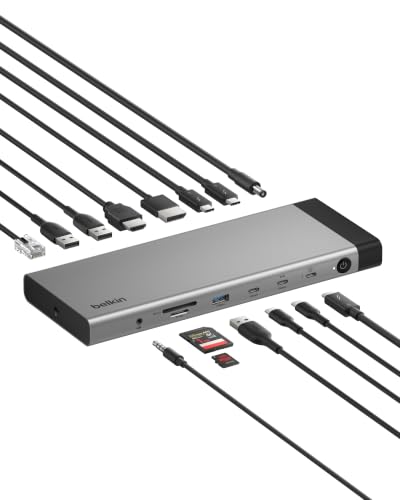
This dock's 3-year coverage specifically protects up to $2,500 in connected device damage, a concrete monetary figure that gives real assurance beyond a standard hardware replacement warranty. Its Belkin Smart Safety System includes a 6-point protection system covering over-voltage, overload, over-current, over-temperature, short-circuit protection, and fire-resistant materials.
Compared to the CalDigit pick above, this one's packaging is specifically 100% plastic-free, a concrete sustainability disclosure rather than vague eco-marketing language. Its triple 4K monitor support at 144Hz or 8K@60Hz, combined with daisy-chaining up to 6 Thunderbolt devices, delivers genuinely flexible multi-display and expansion capability.
Best for buyers who want the strongest disclosed warranty coverage with a 6-point electrical safety system.
Best for: buyers who want the strongest disclosed warranty coverage with comprehensive electrical safety protection
Check price on AmazonPros
- +3-year coverage with a concrete $2,500 protection figure
- +6-point electrical safety system protects connected devices
- +100% plastic-free packaging is a concrete sustainability disclosure
Cons
- −Fewer total ports (14) than the CalDigit pick's 15
- −140W charging is slightly lower than some competing docks' peak wattage
StarTech Thunderbolt 5 Universal Docking Station, Quad Monitor
About this pick
This dock's listing specifically breaks down Apple Silicon display support by exact chip: dual 6K on MacBook Pro/Max models, up to triple 4K at 120Hz on M5 Pro chips, and quad 4K displays when daisy-chaining two Thunderbolt monitors on M5 Max chips, a genuinely granular level of documentation. Its quad 4K@60Hz display support on Windows via HDMI and DisplayPort delivers a high-performance multi-monitor workspace.
Compared to the CalDigit and Belkin picks above, this one's driverless plug-and-play design works consistently across macOS and Windows specifically to reduce OS-specific workarounds and help desk tickets in shared and hot-desking environments. Its integration in StarTech's Innovation Lab testing across more than 100 monitors and major laptop brands backs its cross-platform reliability claims.
Best for buyers who want the most detailed per-chip Apple Silicon display documentation with driverless cross-platform reliability.
Best for: buyers who want the most detailed per-chip Apple Silicon display documentation
Check price on AmazonPros
- +Most detailed per-chip Apple Silicon display documentation in this comparison
- +Driverless design reduces OS-specific setup friction
- +Tested across 100+ monitors and major laptop brands in StarTech's Innovation Lab
Cons
- −Quad display support on Mac requires daisy-chaining two monitors specifically
- −No stated built-in storage expansion like some competing docks
Anker Prime TB5 Docking Station, 14-in-1
About this pick
This dock's listing specifically states a 150GB file transfers in just 25 seconds through its Thunderbolt 5 port, a concrete, easy-to-understand real-world speed benchmark rather than a raw Gbps figure requiring more technical interpretation. Its advanced active cooling system is specifically engineered for optimal performance even under full load, preventing overheating during sustained heavy use.
Compared to the CalDigit, Belkin, and StarTech picks above, this one delivers up to 8K@60Hz for a single display or dual 8K@60Hz specifically for Thunderbolt 5 Windows laptops through its combination HDMI/DisplayPort 2.1 output and two Thunderbolt 5 downstream video ports. Its 140W max Thunderbolt 5 upstream port supports the PD 3.1 protocol alongside front-facing dual USB-C ports sharing 45W for accessories.
Best for buyers who want a concrete, relatable large-file transfer speed benchmark with dual 8K display support.
Best for: buyers who want a concrete, relatable large-file transfer speed benchmark with dual 8K support
Check price on AmazonPros
- +Concrete real-world transfer speed benchmark, not just a Gbps figure
- +Dual 8K@60Hz display support on Thunderbolt 5 Windows laptops
- +Active cooling specifically engineered to prevent overheating under full load
Cons
- −Front-facing USB-C ports share a combined 45W rather than independent allocations
- −Same price as the CalDigit pick with fewer total ports
How We Evaluated These Thunderbolt 5 Docks
Each pick was assessed across 5 criteria weighted for real-world use.
Host chip and port match
We checked whether each dock states what it needs from the laptop, because a Thunderbolt 4 host runs any of these at 40Gbps instead of the 80Gbps headline. For a general-purpose dock in this roundup we gave extra credit to listings that name PD 3.1 hosts for the full 140W charge, since older laptops cap at 100W.
Bandwidth Boost honesty
We compared how each listing explains the 80Gbps base rate versus the 120Gbps display boost. The boost only applies to display data, so a dock that implies 120Gbps for file copies misleads buyers; we favored pages that separate the two clearly.
Display limits by Mac chip and Windows
We read the display tables for each pick, since the same dock drives different monitor counts on an M-series Mac than on a Windows laptop. StarTech's per-chip breakdown scored highest here because it lets a buyer check their exact chip before ordering.
Port mix and power budget
We counted usable ports and the sustained wattage behind them, for example the CalDigit's 240W supply against the 140W it sends upstream. A dock with many ports but a small brick forces the laptop charge and the peripherals to compete under load.
Warranty and safety disclosure
We weighed written warranty terms and named protection systems, such as Belkin's 3-year term and 6-point safety system. At this price tier a dock should be a multi-year desk fixture, so coverage length mattered more than a bonus port or two.
How to Choose the Right Thunderbolt 5 Docks
By Primary Need
Thunderbolt 5 docks look alike on the box, so start with the one job you cannot compromise on.
| If you mainly need | Recommended pick |
|---|---|
| The largest port count with a power supply big enough to run every port at once | CalDigit TS5 Thunderbolt 5 Dock, with 15 ports and a 240W supply behind them |
| Written warranty and electrical protection you can point to if something fails | Belkin 140W Thunderbolt 5 Dock, with 3-year coverage and a 6-point safety system |
| Clear per-chip display numbers before you commit on an M-series Mac | StarTech Thunderbolt 5 Universal Docking Station, which documents limits by exact Mac chip |
| Fast bulk copies for video or backup work, plus active cooling under load | Anker Prime TB5 Docking Station, which states a 150GB copy in 25 seconds |
By Budget
These four sit within a narrow price band, so the real question is what the extra money buys.
| Budget situation | Recommended pick |
|---|---|
| You want the lowest entry price in this roundup and still need 140W charging | Belkin 140W Thunderbolt 5 Dock, the cheapest of the four at under $350 |
| You can spend a little more and want Mac and Windows to behave the same way | StarTech Thunderbolt 5 Universal Docking Station, priced under $400 |
| You will pay the top of the range for the most ports and the biggest power supply | CalDigit TS5 Thunderbolt 5 Dock, priced under $400 |
| You move large files daily and would rather pay for cooling than extra ports | Anker Prime TB5 Docking Station, priced under $400 with fewer ports than CalDigit |
Port Count vs Written Protection
Both ideas are reasonable, but they pull in different directions once the desk is set up.
More ports (CalDigit TS5)
Fifteen ports and a 240W supply mean a keyboard, drives, capture card and monitors can all stay plugged in without hitting a power ceiling. Choose this if the dock never leaves the desk.
More protection (Belkin 140W)
The Belkin gives up one port against CalDigit but adds 3-year coverage and a named 6-point safety system. Choose this if expensive monitors and drives sit downstream and you want the paper trail.
Most buyers should default to the CalDigit unless a documented warranty is a hard requirement, in which case Belkin wins.
By Mac Chip Tier
Display ceilings are set by the Mac chip first and the dock second.
| Your Mac | Recommended pick |
|---|---|
| M5 Max where you want four 4K displays | StarTech Thunderbolt 5 Universal Docking Station, since its listing explains the daisy-chain step that Mac needs for quad 4K |
| M3, M4 or M5 Pro driving two high-resolution monitors | CalDigit TS5 Thunderbolt 5 Dock, which lists dual 8K at 60Hz and has headroom for storage on the other ports |
| A Windows laptop with a Thunderbolt 5 port and two 8K panels | Anker Prime TB5 Docking Station, which lists dual 8K at 60Hz for Thunderbolt 5 Windows hosts |
| Base M-series Mac with only one external display allowed | Belkin 140W Thunderbolt 5 Dock, because the cheapest pick is enough when the chip caps displays anyway |
For IT-Managed Shared Desks Specifically
Hot-desking punishes any dock that needs drivers or invites theft.
Look for
Driverless operation on both macOS and Windows, plus a physical lock slot so a dock does not walk away from a shared desk.
In this comparison
StarTech Thunderbolt 5 Universal Docking Station matches both: it runs driverless across platforms and carries K-slot and Nano lock slots, and the listing says it was checked against 100+ monitors.
When to Spend More
The three cheaper-feeling decisions here are really about ports, power and protection.
Spend more if
You run several drives, a capture card and two monitors off one cable, where the CalDigit TS5 and its 240W supply keep the laptop charging at 140W while everything else runs.
Save if
You only need the laptop charged and one or two monitors, where Belkin's under $350 price and 3-year coverage cover the basics without paying for ports you will leave empty.
Frequently Asked Questions
What's the real difference between Thunderbolt 5 and Thunderbolt 4 for everyday use?
Thunderbolt 5 delivers up to 80Gb/s bi-directional bandwidth, double Thunderbolt 4's core throughput, plus a Bandwidth Boost feature that can allocate up to 120Gb/s toward demanding displays, genuinely noticeable for large file transfers and high-refresh multi-monitor setups, though the difference is less noticeable for basic charging and single-display use.
What's the most common mistake buyers make when choosing a Thunderbolt 5 dock?
Assuming all Thunderbolt 5 docks deliver identical real-world performance based on similar headline bandwidth branding, when warranty terms, per-chip Mac display support, and total port count vary meaningfully between specific models even at similar prices.
Is the CalDigit TS5 worth the price over the Belkin dock if I don't need 15 ports?
If you don't need the CalDigit's maximum port count, the Belkin's stronger disclosed warranty terms and lower price make it a compelling alternative, but if you want the most comprehensive connectivity with sustained full-port power delivery, the CalDigit's extra ports and power capacity justify its price.
Do I need a Thunderbolt 5 laptop to use any of these docks, or will Thunderbolt 4 work?
These docks generally work with Thunderbolt 4 hosts at reduced functionality, but achieving their full rated 80Gb/s bandwidth and maximum display combinations specifically requires a genuine Thunderbolt 5 host connection.
How do I know which dock gives my exact MacBook Pro chip the most display support?
Checking a dock's specifically stated per-chip display documentation, like the StarTech pick's breakdown by exact M-series chip tier, against your own Mac's specific chip generation is the most reliable way to confirm actual achievable display support.
Can I daisy-chain additional devices through any of these docks?
Yes, the Belkin pick specifically supports daisy-chaining up to 6 Thunderbolt devices, and the other picks in this comparison generally support some level of Thunderbolt daisy-chaining, though checking each specific listing's stated maximum daisy-chain device count is worth doing before planning an extensive multi-device setup.
Bottom Line
best overall: CalDigit TS5 Thunderbolt 5 Dock, 15 Port - best overall pick in this roundup.
See the full rankings above for all picks with pros, cons, and best-for summaries.
Browse on Amazon
All Prime-eligible options with current pricing.
Shop on Amazon →